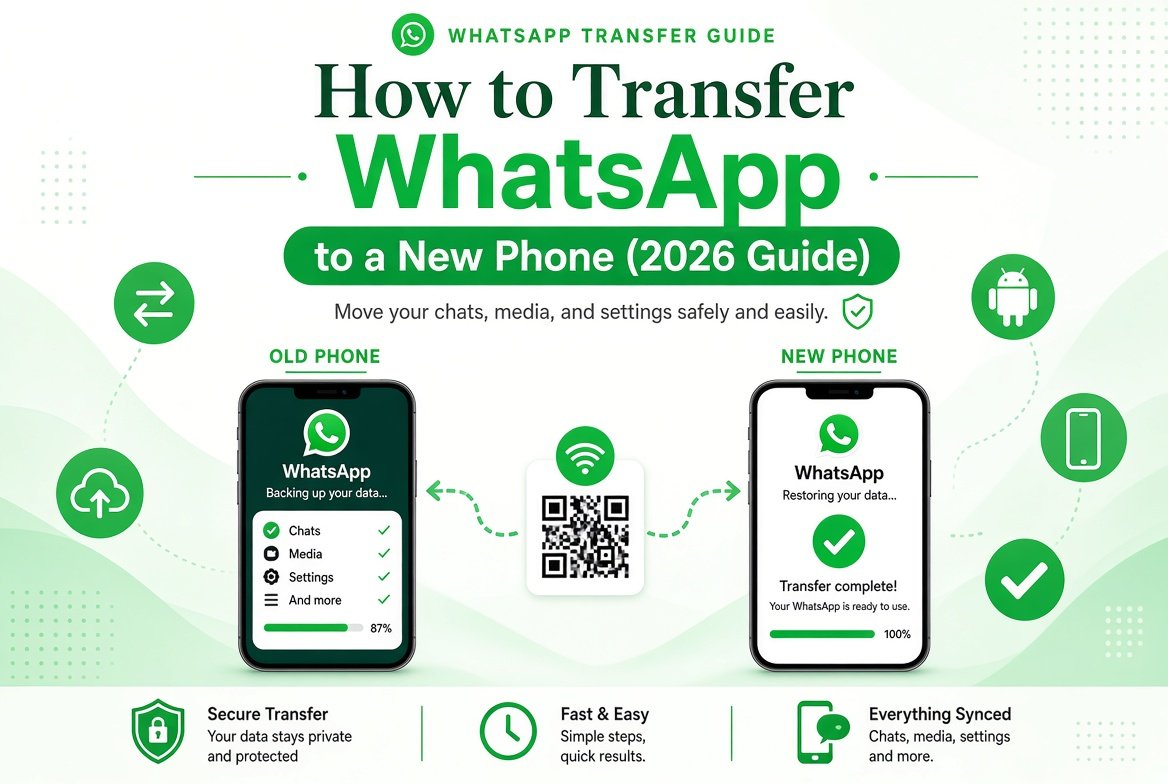
Getting a new phone is exciting, but transferring your WhatsApp chats, media, and account can feel stressful. Fortunately, WhatsApp offers reliable ways to move everything to a new device. This guide covers how to transfer WhatsApp to a new phone in 2026 for both Android and iPhone.
Before You Start
- Make a fresh backup of your chats on the old phone.
- Keep both phones charged and connected to Wi-Fi.
- Have your phone number ready for verification.
- Do not uninstall WhatsApp from the old phone until the transfer is complete.
Transfer WhatsApp from Android to Android
- On your old phone, open WhatsApp and go to Settings > Chats > Chat backup. Create a backup to Google Drive.
- Install WhatsApp on the new phone.
- Verify your phone number.
- When prompted, tap Restore to download the backup from Google Drive.
- Wait for the restore to finish, then complete the setup.
Your chats and media should now appear on the new device.
Transfer WhatsApp from iPhone to iPhone
- On the old iPhone, open WhatsApp and go to Settings > Chats > Chat Backup. Create a backup to iCloud.
- Install WhatsApp on the new iPhone.
- Verify the same phone number.
- Tap Restore Chat History when prompted.
- Wait for the process to complete.
Make sure you are signed in with the same Apple ID on both devices.
Transfer Between Android and iPhone
Moving between different operating systems is more limited. WhatsApp does not offer a direct official transfer from Android to iPhone or vice versa for the full chat history in all cases. The most reliable method is still using a cloud backup on the same platform when possible. Some third-party tools claim to help, but they often require extra steps and carry risks.
The safest approach is to keep important chats exported or ensure you have a recent backup before switching platforms.
Using QR Code Transfer (Same Platform)
On newer versions, WhatsApp may offer a QR code option during setup to move data directly between two phones of the same type. Follow the on-screen instructions if this option appears.
After the Transfer
- Check that important chats and media are present.
- Log out of WhatsApp on the old phone if you no longer need it.
- Set up a new automatic backup on the new phone.
Final Thoughts
Transferring WhatsApp works best when you create a fresh backup first and follow the restore process carefully. Taking a few extra minutes to prepare can prevent lost conversations.
For more tips on managing your chats and privacy, visit our WhatsApp Complete Guide.