
Ransomware attacks are no longer rare or limited to large corporations. Today, everyday users are just as vulnerable. One accidental click on a suspicious email attachment or malicious link can lock your personal files within seconds. Once encrypted, your documents, photos, and important data become inaccessible — unless you pay a ransom that offers no guarantee of recovery.
The good news? Prevention is far more effective than recovery. With the right security tool installed, you can block ransomware before it ever gets a chance to damage your system. IObit Malware Fighter 13 Free is designed to do exactly that. In this guide, you’ll learn how to use IObit Malware Fighter properly to stop ransomware threats before they start.
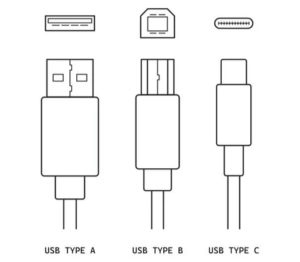 The Real Difference Between Type-C Chargers and USB-A to USB-C Adapters
 How Fintech Innovators Are Reshaping Enterprise Operations
 Keeprix Video Downloader – Save MP4s from All Major Streaming Platforms
Understanding How Ransomware Works
Before diving into protection methods, it helps to understand the threat.
Ransomware typically spreads through:
- Phishing emails
- Fake software downloads
- Infected websites
- Malicious ads
- Exploit kits targeting outdated software
Once inside your system, ransomware encrypts files and demands payment — often in cryptocurrency — in exchange for a decryption key. In many cases, victims either lose their files permanently or pay and still fail to recover their data. This is why proactive defense matters more than reactive fixes.
 Dynamics 365 for U.S. Nonprofits: Streamlining Donor Management and Grant Compliance
 Trending in Digital Museums for 2025
 Precision CNC Machining Processes: How Advanced Manufacturing Technology Solves Complex Production Challenges
Step 1: Install and Set Up IObit Malware Fighter 13 Free
Start by downloading and installing the program from the official IObit website on your PC. The installation process is simple:
- Run the installer.
- Follow the on-screen instructions.
- Launch the program once installation completes.
When you first open IObit Malware Fighter 13 Free, the software automatically performs a quick system scan to check for immediate threats. Let it complete the scan before moving forward.

Step 2: Enable Real-Time Protection
One of the most important defenses against ransomware is real-time monitoring. This feature continuously watches system activity and blocks suspicious behavior before damage occurs.
To activate it:
- Open the main dashboard.
- Go to the Protection section.
- Ensure Real-Time Protection is turned ON.
Real-time protection detects suspicious file encryption attempts and malicious behavior patterns commonly associated with ransomware.
Without this feature enabled, your system is more vulnerable to sudden attacks.
Step 3: Turn On Anti-Ransomware Engine
The dedicated Anti-Ransomware Engine is the core feature that prevents unauthorized encryption attempts.
To configure it:
- Navigate to the Security Guard or Protection tab.
- Enable Anti-Ransomware Protection.
- Make sure sensitive folders like Documents, Pictures, and Desktop are protected.
This feature monitors your most important files and blocks unknown programs from modifying them without permission.
If ransomware tries to encrypt your data, the software immediately stops the process.
Step 4: Use Safe Browsing Protection
Many ransomware infections begin online. Malicious websites or fake downloads can silently introduce threats into your system.
Enable Safe Browsing features to:
- Block harmful websites
- Prevent phishing attacks
- Stop malicious downloads
When active, this layer acts as a shield between your browser and potential threats.
Step 5: Schedule Automatic Scans
Even with real-time protection enabled, regular system scans add another layer of security.
To schedule scans:
- Open the Scan section.
- Choose Full Scan or Custom Scan.
- Set a weekly or bi-weekly schedule.
Routine scans help detect dormant malware that may not have activated yet.
Step 6: Keep the Malware Database Updated
Cyber threats evolve constantly. New ransomware variants appear regularly. Keeping your virus definitions updated ensures you’re protected against the latest threats. IObit Malware Fighter automatically checks for updates, but you can also manually update from the main dashboard.
Never ignore update notifications — outdated protection reduces effectiveness.
Additional Protection Tips
While security software provides strong defense, combining it with safe habits strengthens your protection.
1. Avoid Suspicious Emails
Never click unknown attachments or links, especially from unfamiliar senders.
2. Backup Important Files
Even the best protection isn’t 100% foolproof. Keep backups on external drives or cloud storage.
3. Keep Windows Updated
Security patches fix vulnerabilities that ransomware may exploit.
4. Avoid Pirated Software
Cracked programs are a common source of hidden malware.
What Happens If Ransomware Is Detected?
If suspicious encryption activity is detected:
- The program immediately blocks the process.
- You receive a warning notification.
- The malicious file is quarantined.
This rapid response prevents your files from being locked in the first place.
Early detection is critical. Once encryption finishes, recovery becomes much more difficult.
Why Prevention Is Better Than Paying Ransom
Paying ransom has several risks:
- No guarantee of file recovery
- Encourages cybercriminal activity
- Possible second attack later
- Financial loss
Using IObit Malware Fighter 13 Free helps eliminate these risks by focusing on stopping threats before damage happens.
Who Should Use This Protection?
This software is especially useful for:
- Students storing academic files
- Freelancers handling client documents
- Small business owners
- Remote workers
- Home users with personal photos and data
Anyone with valuable files on their computer can benefit from anti-ransomware protection.
Final Thoughts
Ransomware attacks can strike without warning, locking you out of your own data in minutes. Recovery is uncertain, stressful, and often expensive. The smarter approach is prevention.
By properly configuring IObit Malware Fighter, enabling real-time protection, activating the anti-ransomware engine, and maintaining regular updates, you can dramatically reduce your risk.
With IObit Malware Fighter 13 Free running in the background, your system gains an active defense shield — one that works continuously to stop ransomware before it starts.
Protecting your files today could save you from serious loss tomorrow.