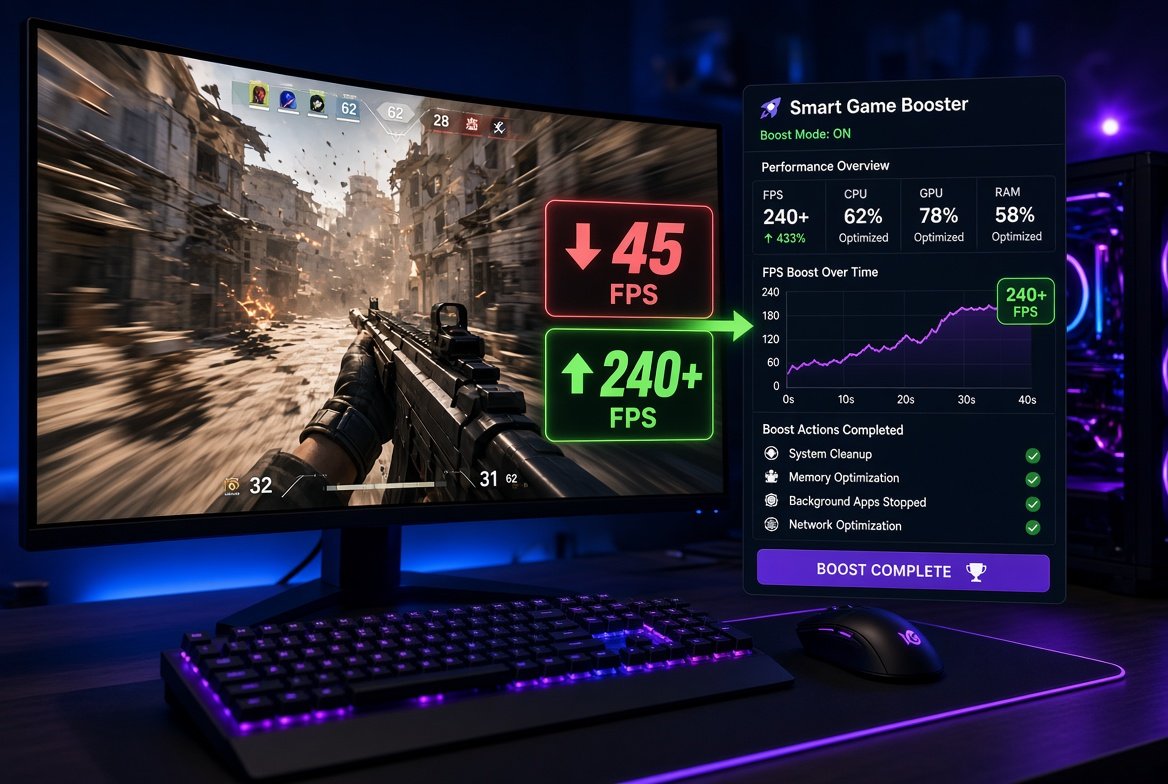
For a while, I couldn’t figure out why my games were suddenly running worse than they used to.
My PC hadn’t changed, and I hadn’t installed any major hardware recently. Yet some of the games I played regularly started showing inconsistent frame rates. I noticed stuttering during busy scenes, slower responses, and occasional drops that made otherwise enjoyable sessions frustrating.
My first thought was that I needed better hardware.Before spending money on a new graphics card or processor, though, I decided to see if I could improve things with the system I already had.That’s when I started experimenting with Smart Game Booster.
I Started by Checking the Basics
I didn’t want to install a performance tool and immediately assume it had fixed everything.
First, I checked my graphics settings, closed applications I wasn’t using, and made sure Windows was updated. I also looked at which programs were running in the background.
Some were consuming resources even though I wasn’t actively using them.
That was my first reminder that gaming performance isn’t always about raw hardware. Background activity, outdated drivers, and system settings can also affect how smoothly a game runs.
Why I Tried Smart Game Booster
I came across Smart Game Booster while looking for a simpler way to manage gaming performance.
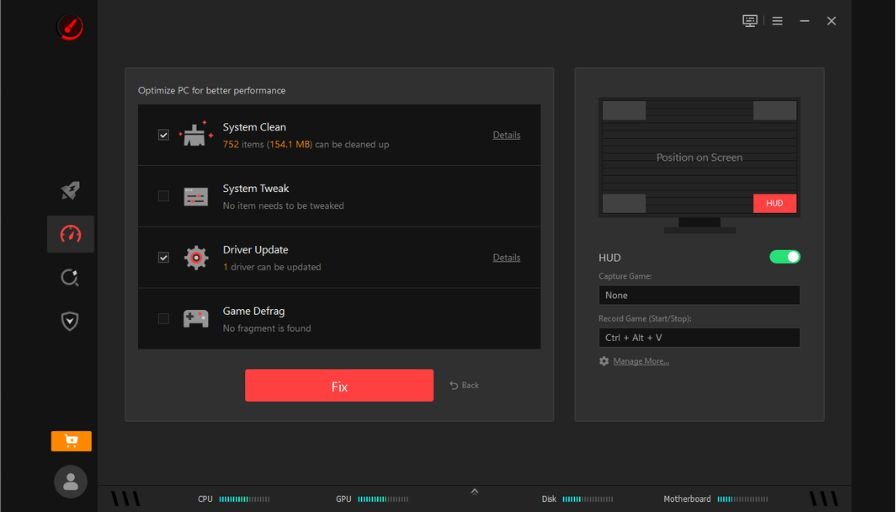
What interested me was that it wasn’t focused on just one task. It brought several gaming-related functions together, which meant I didn’t have to search through different Windows settings every time I wanted to prepare my PC for a gaming session.
The interface was also straightforward enough that I could understand what I was doing without spending hours reading technical documentation.
The First Thing I Noticed
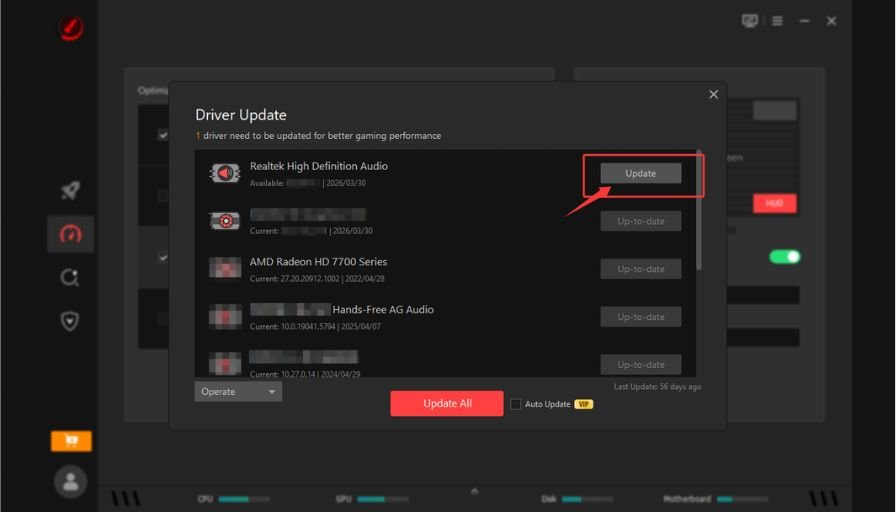
One of the most useful parts for me was the driver management.
Graphics drivers can have a noticeable impact on game compatibility and performance, especially when newer games or major patches are released.
Smart Game Booster made it easier to check whether my drivers were outdated and manage updates from one place.
After updating the relevant drivers, I restarted my PC and tested the same games under similar settings.
The results weren’t identical across every title, but some games felt noticeably smoother.
Using It as an FPS Booster
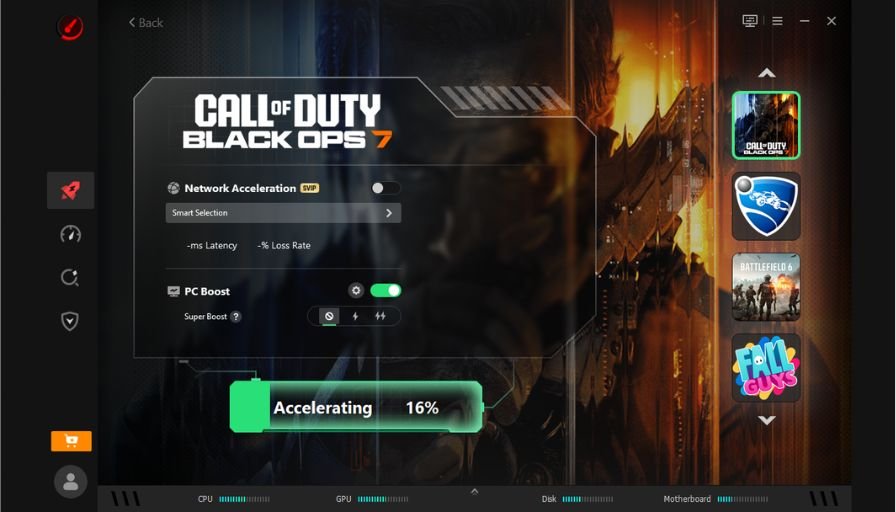
I also experimented with the optimization features designed to prepare the PC for gaming.
Before launching a demanding game, I could use the software to reduce unnecessary background activity and free up some system resources.
I think of this as an FPS Booster rather than a magic performance button.
It can’t turn entry-level hardware into a high-end gaming machine, but reducing unnecessary processes can give the system more room to concentrate on the game that’s actually running.
That distinction is important.
My FPS Results Were Game-Dependent
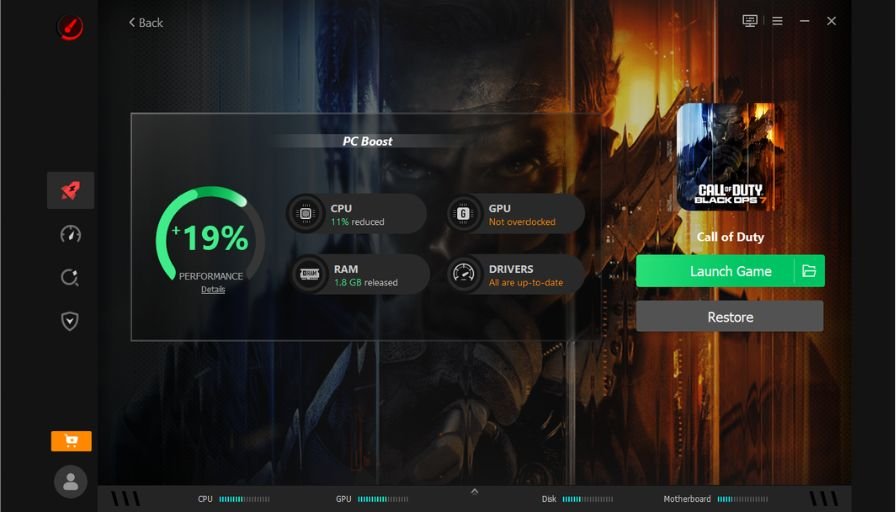
I didn’t see the same improvement in every game.Some titles showed a more noticeable improvement in frame consistency, while others changed very little.The biggest difference I noticed was in situations where background programs had previously been competing for system resources.
Instead of focusing only on the highest FPS number, I paid attention to how the game felt.
For me, smoother frame delivery was often more valuable than a small increase in the maximum FPS.
Features I Found Useful
After using Smart Game Booster for a while, a few features stood out.
Game Library Management
Having my games organized in one place also made launching and managing them more convenient.
Driver Updates
Keeping graphics and other relevant drivers current helped me avoid compatibility issues and made it easier to prepare my PC for newer games.
Game Optimization
The optimization tools helped reduce unnecessary background activity before gaming.
FPS Monitoring
Being able to pay attention to frame-rate performance helped me compare changes instead of relying entirely on how the game felt.
What Surprised Me Most
The biggest surprise was how often I had blamed my hardware without checking the software side first.I had assumed that frame drops automatically meant my graphics card was too old.After testing different settings and keeping the system maintained, I realized performance problems can have several causes.
That doesn’t mean software optimization will solve every FPS problem. Hardware limitations are still real.But it’s worth eliminating easier problems before spending hundreds of dollars on upgrades.
Pros
- Simple interface for gaming-related maintenance.
- Helps manage outdated drivers.
- Optimization tools can reduce unnecessary background activity.
- FPS monitoring makes performance easier to evaluate.
- Convenient for users who don’t want to adjust everything manually.
Cons
- FPS improvements depend heavily on the individual PC and game.
- Some features may vary between the free and paid versions.
Final Thoughts
I started using Smart Game Boosterbecause I wanted better FPS without immediately replacing my hardware.
What I ended up learning was that gaming performance is about more than the graphics card sitting inside the PC. Drivers, background processes, system maintenance, temperatures, and game settings all play a role.
For me, using Smart Game Booster as an FPS Booster, alongside regular PC maintenance, helped make my games feel smoother and more consistent. It gave me a practical way to optimize what I already had—and that was enough to make my gaming sessions noticeably more enjoyable.