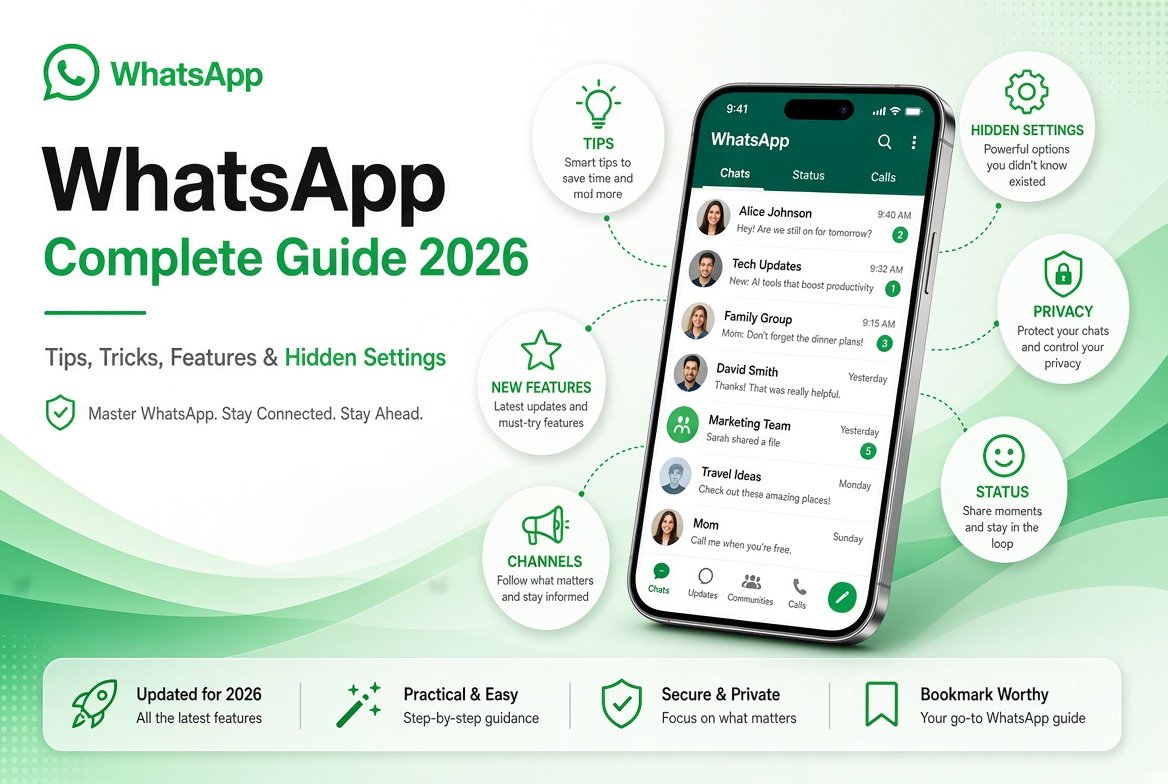
This WhatsApp Complete Guide covers everything you need to know about WhatsApp in 2026. Billions of people rely on it every day for personal conversations, group chats, business communication, and media sharing. Despite its simple interface, WhatsApp continues to add new features and improve existing ones.
Whether you want to improve your privacy, fix common problems, discover useful hidden settings, or simply use the app more efficiently, this WhatsApp complete guide will help you.
Why WhatsApp Still Matters in 2026
WhatsApp has evolved far beyond basic text messaging. It now supports high-quality voice and video calls, large group communities, Channels for following topics, and stronger privacy controls. The app works across Android, iPhone, and desktop, making it convenient for most users.
Many people only use the basic features. Learning a few extra settings and habits can make a noticeable difference in privacy, organization, and daily experience.
Essential WhatsApp Privacy Settings
Privacy should be one of the first things you review after installing or updating WhatsApp.
Last Seen and Online Status
You can control who sees when you were last active and whether you appear online. Go to Settings > Privacy > Last Seen and Online. Options include Everyone, My Contacts, My Contacts Except, and Nobody.
Choosing “My Contacts Except” lets you hide your status from specific people without blocking them completely.
Profile Photo
Limit who can view your profile picture using the same privacy menu. Many users prefer “My Contacts” or a custom list so strangers cannot see their photo. If you want more control over who sees your picture, you can also learn how to hide your WhatsApp profile picture from individual contacts.
About and Status
Your About text and Status updates can also be restricted. Review these settings regularly, especially if you share personal information.
Read Receipts
Turning off read receipts (the blue ticks) means others will not see when you have read their messages. Note that this also hides the blue ticks on messages you send. For a full walkthrough, see our guide on how to turn off blue ticks on WhatsApp.
Groups
You can control who is allowed to add you to groups. This setting helps reduce unwanted group invitations.
Useful WhatsApp Features You Should Know
WhatsApp Channels
Channels let you follow updates from creators, brands, news sources, and public figures without joining a group. You receive broadcasts but cannot reply publicly in most cases. It is a clean way to stay informed without cluttering your regular chats.
Communities
Communities organize multiple related groups under one umbrella. They work well for schools, neighborhoods, clubs, or large organizations that need several discussion spaces.
Linked Devices
You can use WhatsApp on up to four linked devices at the same time (computers or tablets) while keeping your phone as the primary device. This is useful if you prefer typing on a larger screen. For detailed steps, check how to use Linked Devices for your WhatsApp account.
Disappearing Messages
You can set messages in a chat to disappear after 24 hours, 7 days, or 90 days. This feature helps keep conversations temporary when needed.
Message Reactions and Quotes
Reacting with emojis and quoting previous messages makes group conversations easier to follow. These small features improve clarity in busy chats.
Hidden and Lesser-Known Settings
Some useful options are easy to miss.
- Chat Lock – Protect specific chats with a fingerprint, face unlock, or password so they stay hidden from others who may use your phone.
- Mute Notifications – Silence noisy groups for 8 hours, 1 week, or always without leaving the group.
- Media Visibility – Control whether photos and videos you receive automatically appear in your phone’s gallery.
- Storage Management – Review and delete large files or old media that take up space.
- Two-Step Verification – Add an extra PIN so your account is harder to take over if someone gets your verification code.
Common WhatsApp Problems and Quick Fixes
WhatsApp Not Connecting
Check your internet connection first. Then try switching between Wi-Fi and mobile data. Restarting the app or your phone often solves temporary issues. Make sure the app is updated to the latest version.
Messages Not Sending
Look for the single or double gray ticks. If messages stay on a single clock icon, there is usually a network problem. Clearing the app cache (on Android) or reinstalling can help in stubborn cases.
Verification Code Not Arriving
Wait a few minutes and request the code again. Ensure the correct country code is selected. In some cases, calling the number from another phone or using the “Call Me” option works better than SMS.
Account Banned or Restricted
WhatsApp sometimes restricts accounts that appear to violate its terms. If this happens, follow the in-app instructions to request a review. Avoid using unofficial modified versions of the app, as these increase the risk of bans. You can also read our full guide on how to unban a WhatsApp number.
Tips for Better Daily Use
- Archive chats you do not need to see every day instead of deleting them.
- Use labels or starred messages to keep important information easy to find.
- Back up your chats regularly (Google Drive on Android or iCloud on iPhone).
- Review group permissions so only admins can change settings or add members when needed.
- Keep the app updated so you receive security patches and new features.
WhatsApp Web and Desktop
WhatsApp Web and the desktop apps let you chat from a computer while your phone stays connected to the internet. Scan the QR code from the Linked Devices menu to connect. Remember that your phone must remain online for the desktop version to work.
For longer typing sessions or managing multiple chats, the desktop experience is often more comfortable than using only a phone.
Staying Safe on WhatsApp
Be careful with links and files from unknown contacts. Avoid sharing one-time verification codes with anyone. Enable two-step verification and review your privacy settings periodically. If a contact suddenly asks for money or personal details in an unusual way, verify their identity through another channel before responding.
Final Thoughts
This WhatsApp complete guide shows that the app offers more control and useful features than many people realize. Spending a short time adjusting privacy settings, learning a few hidden options, and understanding how Channels and Communities work can improve both security and convenience.
As WhatsApp continues to update, checking the official settings menu from time to time will help you stay current with new options. If you have specific questions about a feature or problem, exploring the related guides on this site can provide more detailed steps.