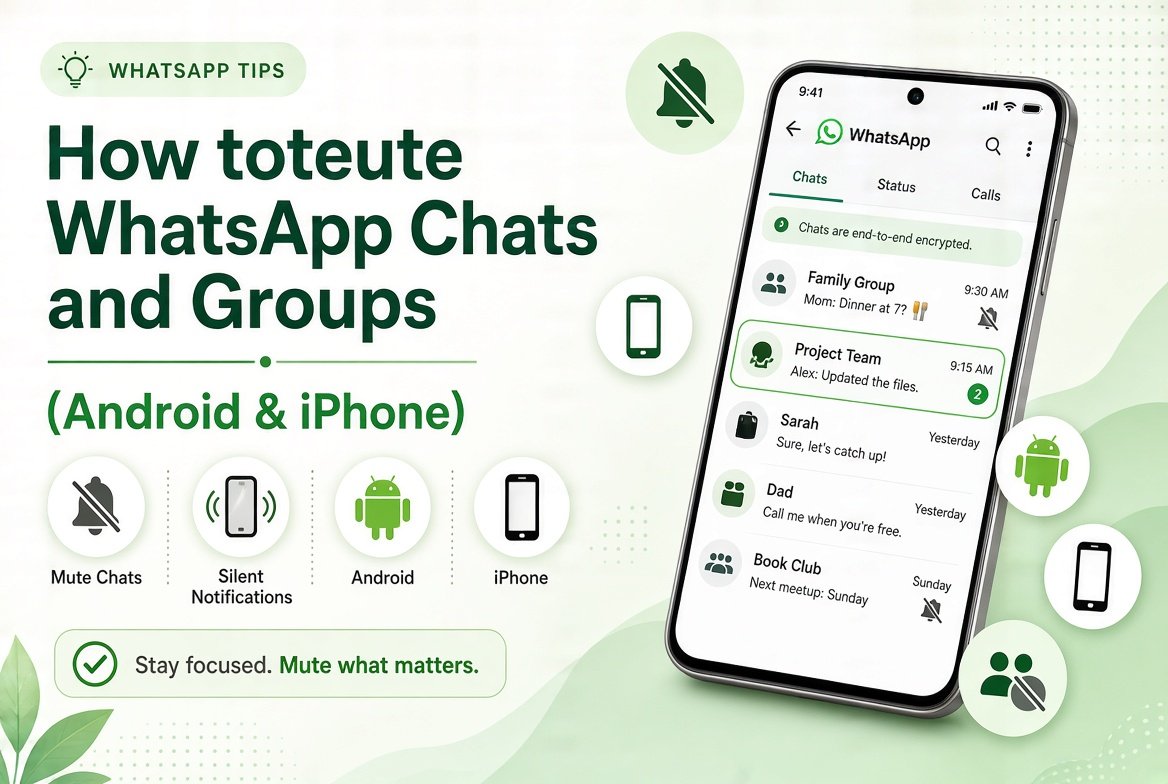
Tired of constant notifications from busy groups or chats? Muting WhatsApp conversations lets you silence them without leaving the group or deleting the chat. This guide shows you how to mute WhatsApp chats and groups on both Android and iPhone.
When you mute a chat, you still receive the messages, but your phone stays quiet. Other people are not notified that you muted them.
How to Mute a WhatsApp Chat on Android
- Open the chat or group you want to mute.
- Tap the contact or group name at the top.
- Tap Notifications.
- Turn on Mute.
- Choose the duration: 8 hours, 1 week, or Always.
- Tap OK.
You can also long-press the chat in the main list, tap the mute icon, and select the duration.
How to Mute a WhatsApp Chat on iPhone
- Open the chat or group.
- Tap the name at the top.
- Tap Notifications or Mute.
- Select 8 hours, 1 week, or Always.
Alternatively, swipe left on the chat in the main list, tap More, then Mute.
Muting Groups – Extra Options
In groups you can mute messages and calls separately on some versions. This is useful if you want to silence chat notifications but still receive group call alerts.
How Long Does Mute Last?
- 8 hours – Good for a workday or overnight.
- 1 week – Useful during busy periods or travel.
- Always – Stays muted until you manually unmute it.
How to Unmute a Chat
Open the muted chat, go to the same Notifications menu, and turn Mute off. You can also long-press or swipe the chat and select Unmute.
Mute vs Archive vs Chat Lock
- Mute – Stops notifications but the chat stays in your main list.
- Archive – Hides the chat from the main list. See our guide on how to archive WhatsApp chats.
- Chat Lock – Hides the chat and protects it with biometrics. Learn more about locking WhatsApp chats.
Final Thoughts
Muting is one of the most practical WhatsApp features for managing noisy groups and conversations. It keeps your notifications under control without removing you from important chats.
For more tips on organizing and securing your WhatsApp, visit our WhatsApp Complete Guide.